Home/Guides/Website won’t accept your WebP? Convert it to JPG
Website won’t accept your WebP? Convert it to JPG
An image can open perfectly in your browser and still be rejected by an upload form. If the file is WebP and the form only accepts JPG, convert it first. Changing the filename from .webp to .jpg won’t change the format inside.
Convert the file, then upload the new copy
- Open the WebP-to-JPG converter and select your WebP.
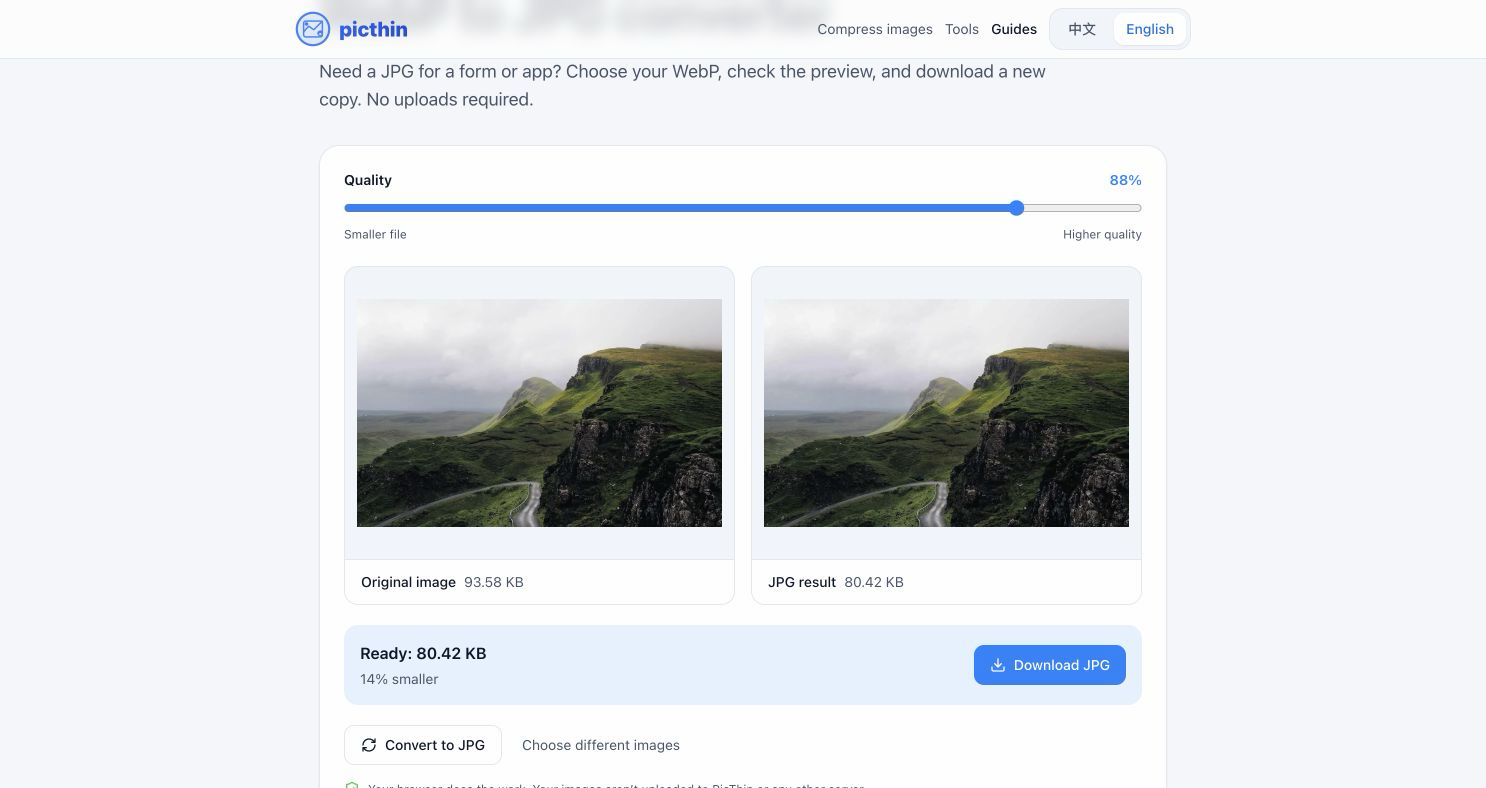
- Start with the default quality of 88%. Wait for the result, then compare it with the original.
- To adjust the result, move the quality slider and choose Convert to JPG.
- Choose Download JPG. Back on the upload form, select the downloaded JPG rather than the original WebP.
Conversion runs in your browser. PicThin doesn’t receive the image. JPG and JPEG refer to the same format, though a particular form may have its own rules about filename extensions.
Know what changes when you convert
Transparency becomes an opaque background
JPG doesn’t support transparency. If you’re converting a logo, sticker, or cutout, inspect the background in the result. Keep WebP—or use a compatible PNG—if the image needs to sit on different backgrounds.
The JPG might be larger
The goal here is compatibility. A JPG isn’t guaranteed to be smaller than a WebP of the same image. If the form also has a file size limit, use the size-limit compressor with your original WebP and choose JPG output. That avoids running an already compressed JPG through another conversion.
Animation won’t survive
JPG is a still-image format. This converter won’t preserve an animated WebP. If motion matters, use an animation tool and a format the destination supports.
Try a sample conversion
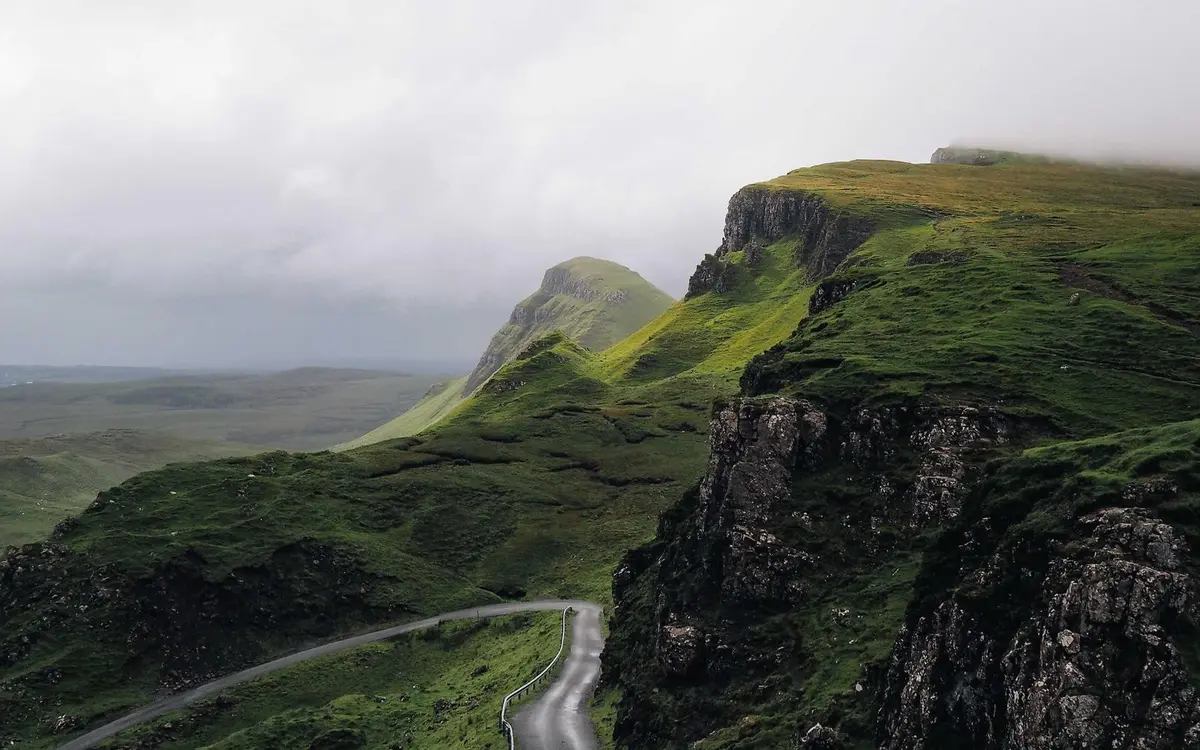
Download the landscape WebP and try the default settings. Compare the texture in the grass and cliffs as well as the file size.
The JPG still won’t upload
Open the downloaded JPG on your device to check that it works. Then compare its size, width, height, and aspect ratio with the form’s requirements. The right format solves only one possible cause of rejection.
If the form reports a connection or sign-in problem, fix that first. More compression won’t help. For a strict photo limit, see how to get a photo under 200 KB; for transparent graphics, use the PNG guide.