Home/Guides/How to make an image smaller and keep it looking sharp
How to make an image smaller and keep it looking sharp
You want a smaller file, but the details still need to hold up. Start with the job the image has to do. A profile picture, a scanned document, and a transparent logo need different decisions.
“Looks the same” is different from “unchanged”
A visually acceptable copy may have different pixels. File size measures bytes, dimensions measure pixels, and quality settings control how an encoder treats detail. None of those numbers alone tells you whether a person can read the text or recognize the face.
Look at the tradeoff for yourself
These two prepared JPG crops show the same scene at different settings. Open them at full size and compare the grass and high-contrast edges. The smaller file is useful as a demonstration, not a target for every image.
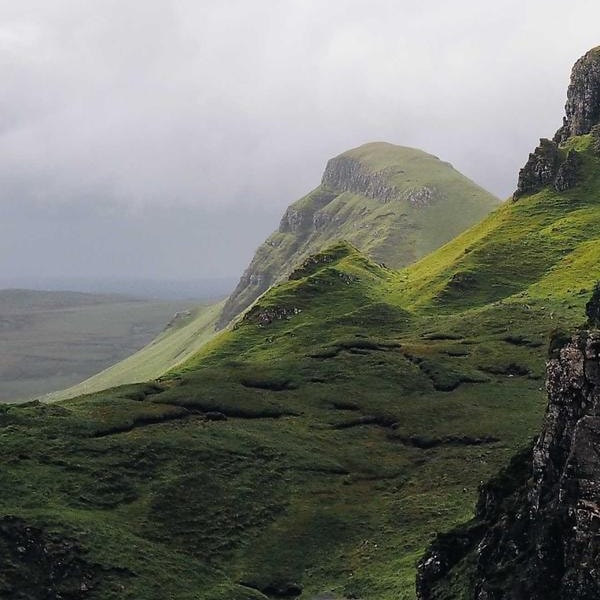
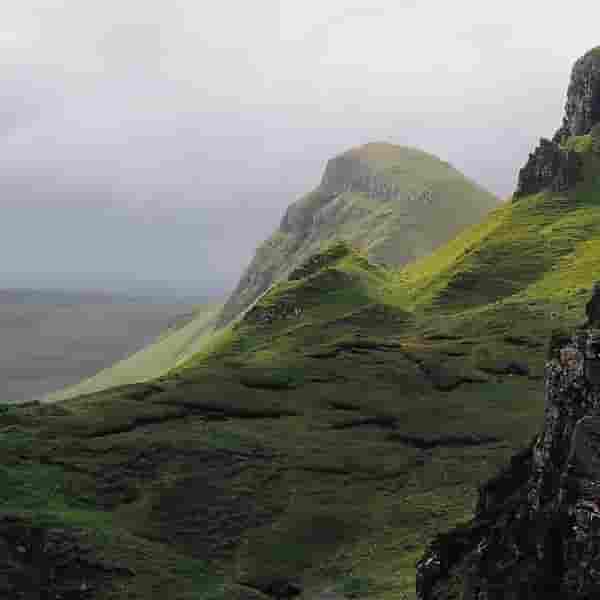
A practical workflow for photos
- Keep an untouched original. Start with the default 80% setting in the JPG compressor.
- Check the result at the size it will be displayed, then zoom in on faces, lettering, and sharp edges.
- If those details break up, raise the quality and make a fresh copy from the original. If the image looks fine but the file is too large, lower it a little and compare again.
- Check the downloaded file’s dimensions and size before sending it.
Quality numbers are not interchangeable between formats or encoders. “80” is a starting point here, not a universal measure of image quality.
For screenshots and logos, protect the details that matter
Tiny text, fine lines, and transparent edges need special attention. PNG encoding is lossless, but PicThin’s PNG compressor first reduces colors at settings below 100%. That step changes pixels. Keep the source file when an exact pixel match is required.
When a form insists on a smaller file
Set a file size limit to let PicThin adjust quality and, when necessary, dimensions. Meeting a KB limit does not prove a photo meets the form’s resolution or legibility requirements. If the result is unusable, start with a better-suited original or ask whether the destination allows a larger file.
A blurry copy will not recover detail when you save it as PNG or increase a quality slider. Get the original photo or screenshot if you can.
Before you download
- Can you read the important text and see the important details?
- Are the format and dimensions right for the destination?
- Have you kept an original for future exports?
See our guide to choosing an image format, with technical background in MDN’s format guide.