Home/Guides/Photo too large for a form? Get it under 200 KB
Photo too large for a form? Get it under 200 KB
You have the right photo, but the form says it’s too large. If the limit is 200 KB, you need a smaller file—not necessarily a different photo. Start by checking the form’s requirements, then make a copy that fits.
For exam and school application photos
The 200 KB limit in this guide is an example, not a rule shared by every application. Check the specific upload field. A school, exam provider, or certification service may require a particular portrait crop, background, or preparation tool. Start with a photo that meets those instructions; PicThin does not crop or change its background.
If the form says 100 KB, use the 100 KB tool. For another limit, set your own target. If you are uploading a certificate rather than a portrait, check the attachment troubleshooting guide.
Check more than the file size
A form can reject a photo for several reasons. Before you compress it, look for these three requirements:
- File size: the limit in KB or MB, such as 200 KB.
- Dimensions: the required width and height in pixels, sometimes with a specific aspect ratio.
- Format: the file types the form accepts, such as JPG or PNG.
For an ID or application photo, also check any rules about cropping, background color, and where the face appears. PicThin reduces file size; it doesn’t crop an ID photo or check whether it meets the form’s other rules.
Make a copy under 200 KB
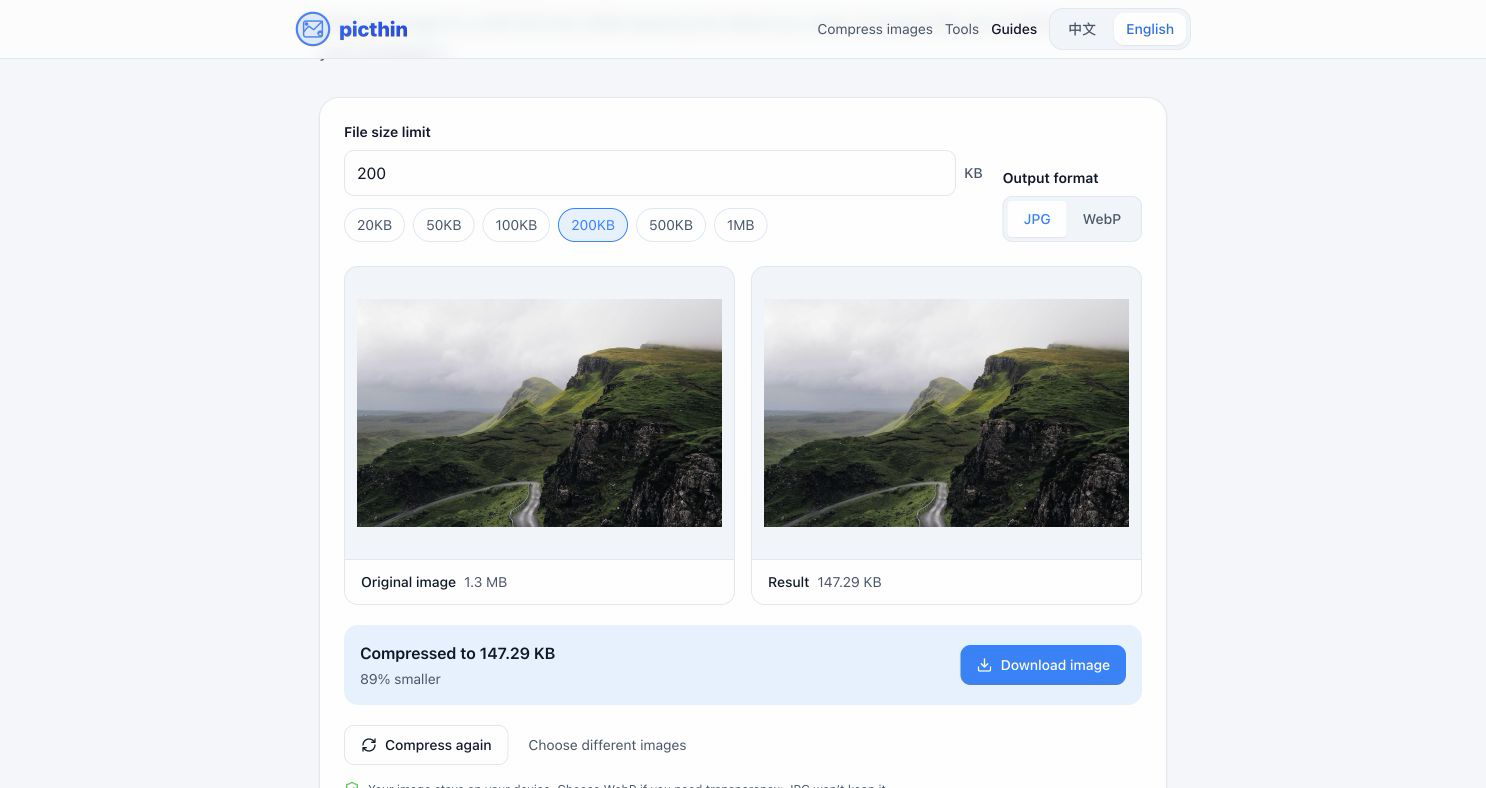
- Keep your original. Open the 200 KB compressor and check that the size limit is set to 200.
- Choose an output format the form accepts. If it asks for JPG or JPEG, choose JPG.
- Select your photo. PicThin adjusts the quality and, if needed, reduces the dimensions to get under the limit.
- Compare the result with the original. Check faces and small text, then choose Download image.
- Check the downloaded file’s dimensions and upload that new copy to the form.
If you change the size limit, choose Compress again to apply it. The copy you downloaded earlier won’t update automatically. Your photo stays in your browser throughout processing.
Try it with a sample
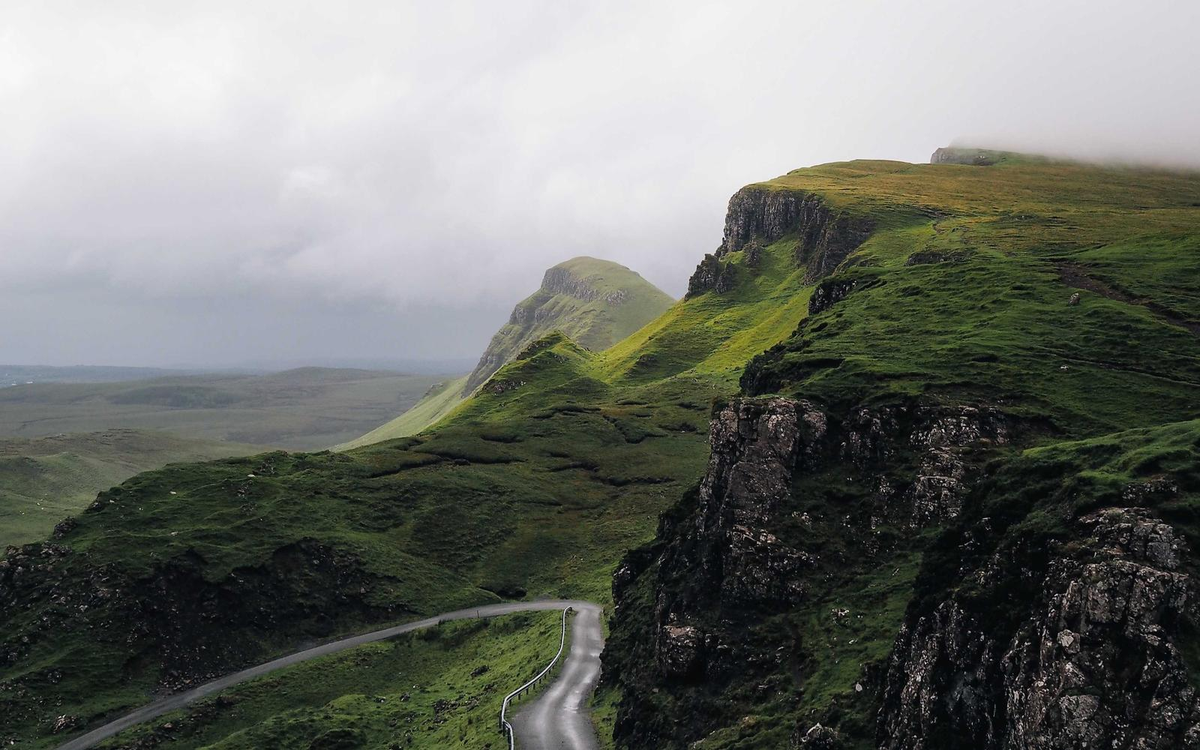
You can download our landscape sample to see how the tool works before choosing your own photo.
Still getting an error?
“File too large”
Make sure you selected the downloaded copy, not the original. If it’s close to the limit, try 190 KB to leave a little room for differences in how the form counts file size. For a lower limit, use a custom size.
“Invalid dimensions” or “unsupported format”
A smaller file can still have the wrong dimensions or format. Check the actual downloaded file. If compression reduced it below the required dimensions, start with a suitable original. If the problem is WebP, follow our WebP-to-JPG guide.
The file fits, but the photo looks blurry
Go back to the original. Repeatedly compressing an already blurry copy won’t recover detail. Use a well-framed photo with less unnecessary background, or raise the size limit if the form allows it.