Home/Guides/Make a PNG smaller without losing its transparent background
Make a PNG smaller without losing its transparent background
A logo or product cutout needs to stay transparent—but it doesn’t need to be a huge file. Keep the output as PNG, reduce the file size, and check the edges before you use the result.
Keep the background transparent
Use the PNG compressor when you need another PNG. Converting to JPG would remove transparency. WebP can keep it, but only use WebP if the app or website receiving the file accepts it.
There’s an important distinction here: PNG’s encoding is lossless, but a compression tool can reduce the number of colors before it encodes the file. That makes the file smaller by changing some of the pixels. Keeping transparency doesn’t mean the result is identical to the original.
Start with the default settings
- Keep a copy of your original PNG, then open the compressor.
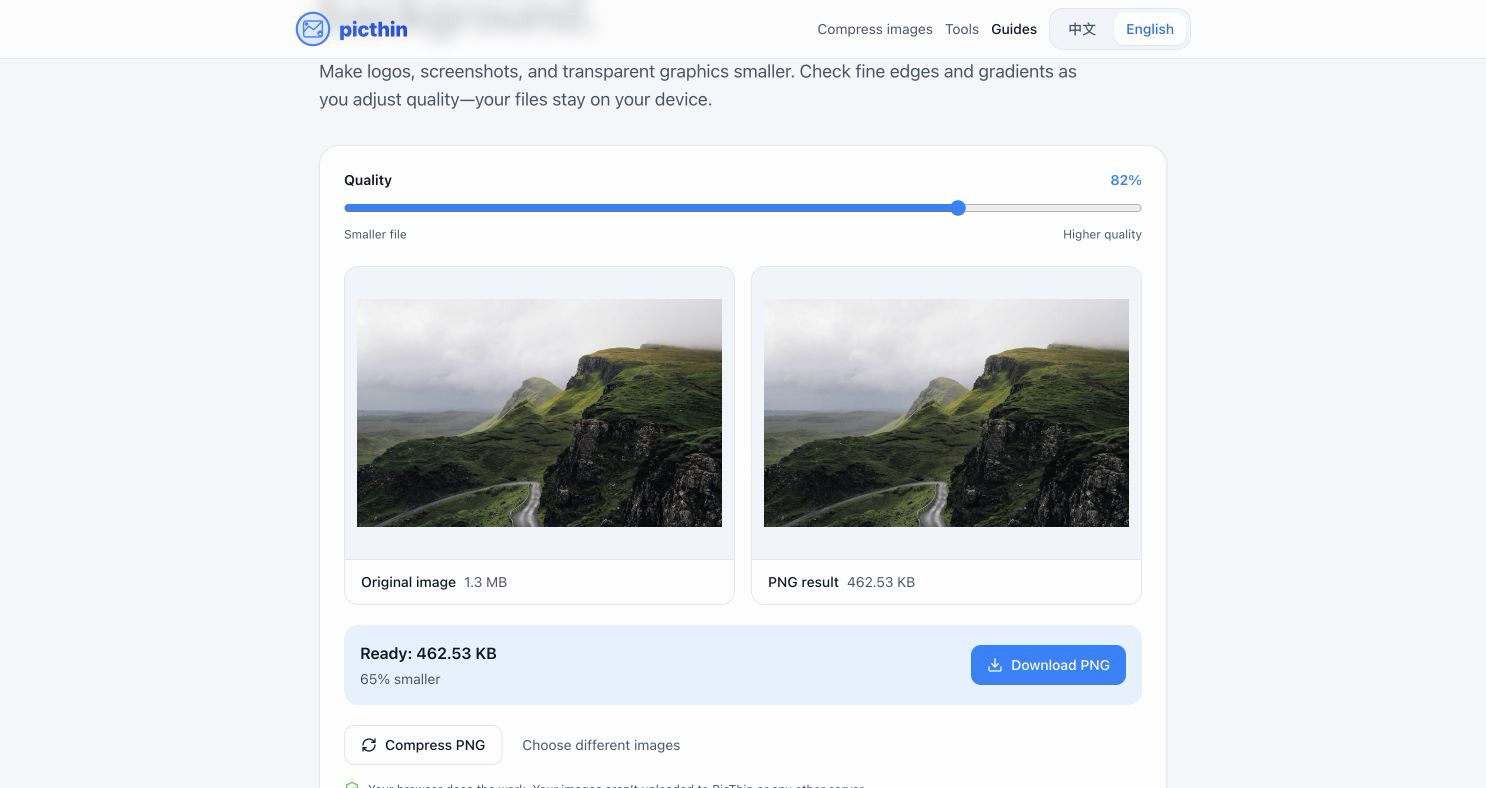
- Choose your file and start with the default quality of 82%.
- Compare the preview and file size. To make it smaller, lower the quality and choose Compress PNG again.
- Download the result and view it against both light and dark backgrounds.
In this tool, quality controls how many colors are retained. It isn’t a promise to reduce the file size by the same percentage. At 100%, PicThin doesn’t reduce the color palette; the file may not get smaller.
Look closely at three areas
- Edges: check hair, rounded corners, and cutouts for halos or rough outlines.
- Text and thin lines: make sure they remain readable at the size you’ll actually use.
- Gradients and shadows: look for stripes or bands where colors used to blend smoothly.
If any of these look worse, raise the quality and try again from the original. The background behind a preview is part of the page; it doesn’t necessarily belong to your image.
A sample you can compare
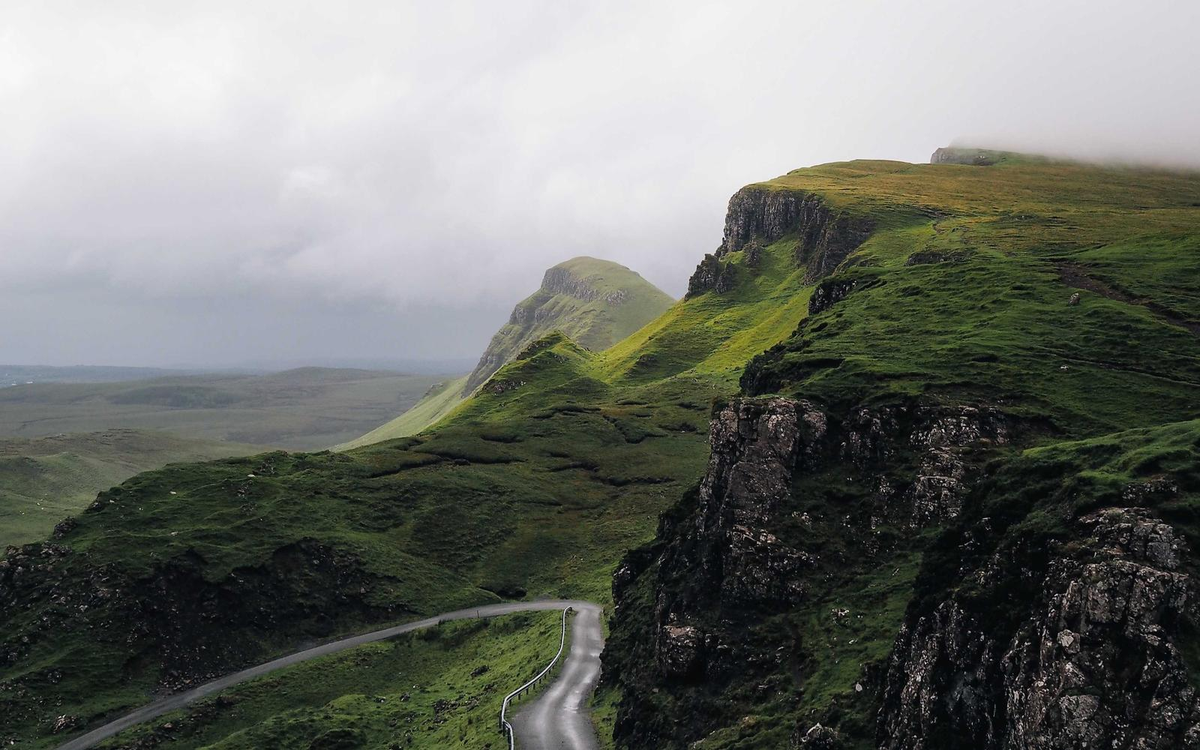
Download the landscape PNG to see how reducing the color palette affects fine detail. This sample is opaque, so use a transparent image of your own to check transparent edges.
What if the file doesn’t shrink?
It may already be well optimized or use very few colors. PicThin keeps the original when the new PNG isn’t smaller, so 0% saved isn’t necessarily an error. Don’t sacrifice useful detail just to make that number change.
If you’re preparing an image for a website, try WebP as another option. If you must deliver a transparent PNG under a strict limit, check which changes are allowed. PicThin’s size-limit tool produces JPG or WebP, not PNG, so it can’t meet every transparent-PNG requirement.